



Salesforce developers and admins often face challenges when it comes to Monitoring Governor Limits and Org Limits. Hitting these limits unexpectedly can cause serious disruptions in business processes. To make this monitoring more efficient, I created a Lightning Web Component (LWC) that fetches real-time Salesforce limits and displays them in an interactive table.
This component not only shows limit usage with visual indicators but also includes features like manual refresh, automatic refresh every 5 minutes, and email notifications.
Features of Salesforce Governor Limits & Org Limits Monitoring LWC Component
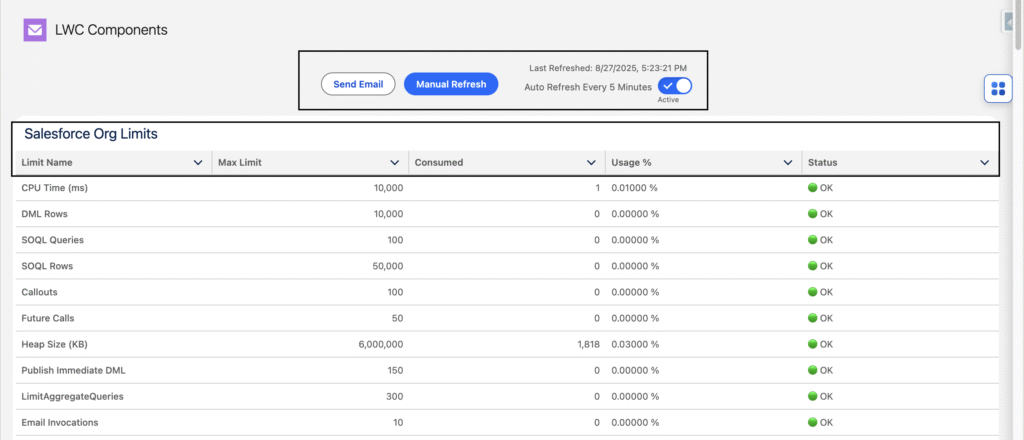
- Displays limit details in a Lightning Datatable with columns:
- Limit Name
- Maximum Limit
- Consumed
- Usage %
- Status (🟢 Green if safe, 🔴 Red if usage > 80%)
- Interactive Options
- Send Email → Notify Salesforce Admins when thresholds are crossed
- Manual Refresh → Fetch latest data instantly
- Auto Refresh → Runs every 5 minutes in the background
Let’s dive into how you can build it.
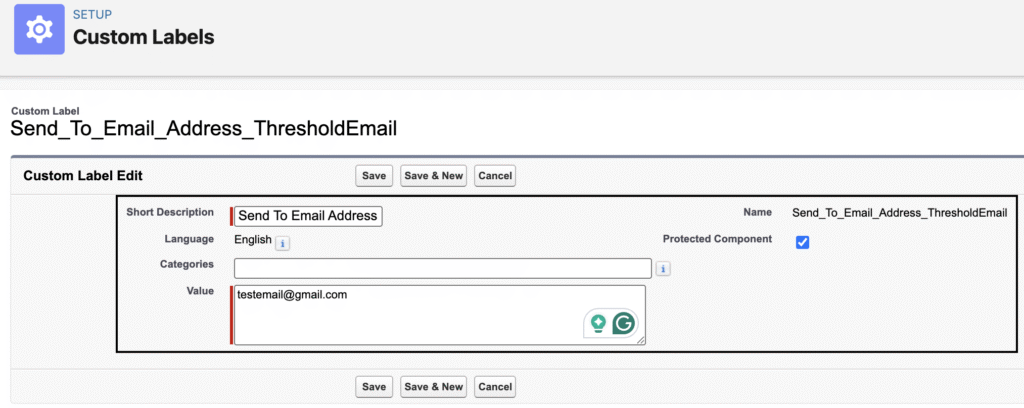
Create a Custom Label to store the Admin’s Email Address to whom we need to send the Email Alert of Salesforce Org Limits:
| Custom Label Name | Custom Label API | Value |
| Send To Email Address ThresholdEmail | Send_To_Email_Address_ThresholdEmail | testemail@gmail.com,noreply@gmail.com |
Backend (Apex Class)
We use the Limits and OrgLimits classes in Apex to fetch governor limits and org limits.
LimitsDashboardController Apex Class – LimitsDashboardController
public with sharing class LimitsDashboardController {
    public class LimitWrapper {
        @AuraEnabled public String name;
        @AuraEnabled public Integer maxLimit;
        @AuraEnabled public Integer consumed;
        @AuraEnabled public Boolean isCritical;
        @AuraEnabled public Decimal usagePercent;
        public LimitWrapper(String name, Integer maxLimit, Integer consumed, Boolean isCritical, Decimal usagePercent) {
            this.name = name;
            this.maxLimit = maxLimit;
            this.consumed = consumed;
            this.isCritical = isCritical;
            this.usagePercent = usagePercent;
        }
    }

    @AuraEnabled(cacheable=true)
    public static List<LimitWrapper> getOrgAndRuntimeLimits() {
        Integer threshold = 80;
        List<LimitWrapper> result = new List<LimitWrapper>();

        // include all standard static methods from Limits class
        result.add(wrap('CPU Time (ms)', Limits.getLimitCpuTime(), Limits.getCpuTime(), threshold));
        result.add(wrap('DML Statements', Limits.getLimitDmlStatements(), Limits.getDmlStatements(), threshold));
        result.add(wrap('DML Rows', Limits.getLimitDmlRows(), Limits.getDmlRows(), threshold));
        result.add(wrap('SOQL Queries', Limits.getLimitQueries(), Limits.getQueries(), threshold));
        result.add(wrap('SOQL Rows', Limits.getLimitQueryRows(), Limits.getQueryRows(), threshold));
        //result.add(wrap('SOSL Queries', Limits.getLimitSearchQueries(), Limits.getSearchQueries(), threshold));
        result.add(wrap('Callouts', Limits.getLimitCallouts(), Limits.getCallouts(), threshold));
        result.add(wrap('Future Calls', Limits.getLimitFutureCalls(), Limits.getFutureCalls(), threshold));
        result.add(wrap('Heap Size (KB)', Limits.getLimitHeapSize(), Limits.getHeapSize(), threshold));
        result.add(wrap('Publish Immediate DML', Limits.getLimitPublishImmediateDML(), Limits.getPublishImmediateDML(), threshold));
        result.add(wrap('LimitAggregateQueries', Limits.getLimitAggregateQueries(), Limits.getAggregateQueries(), threshold));
        result.add(wrap('Email Invocations', Limits.getLimitEmailInvocations(), Limits.getEmailInvocations(), threshold));
        result.add(wrap('Queueable Jobs Added', Limits.getLimitQueueableJobs(), Limits.getQueueableJobs(), threshold));
        result.add(wrap('Apex Cursor Row', Limits.getLimitApexCursorRows(), Limits.getApexCursorRows(), threshold));
        result.add(wrap('Apex Cursor Call', Limits.getLimitFetchCallsOnApexCursor(), Limits.getFetchCallsOnApexCursor(), threshold));
        result.add(wrap('Future Call', Limits.getLimitAsyncCalls(), Limits.getAsyncCalls(), threshold));
        result.add(wrap('getLimitFindSimilarCalls', Limits.getLimitFindSimilarCalls(), Limits.getFindSimilarCalls(), threshold));
        result.add(wrap('getLimitMobilePushApexCalls', Limits.getLimitMobilePushApexCalls(), Limits.getMobilePushApexCalls(), threshold));
        result.add(wrap('getLimitQueryLocatorRows', Limits.getLimitQueryLocatorRows(), Limits.getQueryLocatorRows(), threshold));
        result.add(wrap('getLimitRunAs', Limits.getLimitRunAs(), Limits.getRunAs(), threshold));
        result.add(wrap('getLimitSavepointRollbacks', Limits.getLimitSavepointRollbacks(), Limits.getSavepointRollbacks(), threshold));
        result.add(wrap('getLimitSavepoints', Limits.getLimitSavepoints(), Limits.getSavepoints(), threshold));
        result.add(wrap('getLimitSoslQueries', Limits.getLimitSoslQueries(), Limits.getSoslQueries(), threshold));

        // Org limits via OrgLimits class
        Map<String, OrgLimit> mapOrg = OrgLimits.getMap();
        for (String key : mapOrg.keySet()) {
            OrgLimit o = mapOrg.get(key);
            if (o != null) {
                Integer max = o.getLimit();
                Integer val = o.getValue();
                if (max != null && max != 0 && val != null) {
                    Decimal percent = ((Decimal)val / (Decimal)max) * 100;
                    Boolean critical = (val * 100 / max) >= threshold;
                    result.add(new LimitWrapper(key, max, val, critical, percent));
                }
            }
        }
        return result;
    }

    private static LimitWrapper wrap(String name, Integer max, Integer used, Integer threshold) {
        if (max != null && max != 0 && used != null) {
            Decimal percent = ((Decimal)used / (Decimal)max) * 100;
            Boolean critical = percent >= threshold;
            return new LimitWrapper(name, max, used, critical, percent);
        }
        return null;
    }

    @AuraEnabled
    public static void sendLimitReportEmail() {
        List<LimitWrapper> all = getOrgAndRuntimeLimits();
        String body = 'Salesforce Org & Runtime Limit Report:\n\n';
        for (LimitWrapper lw : all) {
            body += lw.name + ' — Max: ' + lw.maxLimit + ', Used: ' + lw.consumed +

                    (lw.isCritical ? '\n' : '\n');
        }
		List<String> senToEmailaddresses;
		String sendToAddress = Label.Send_To_Email_Address_ThresholdEmail;
		if(sendToAddress.contains(',')){
			senToEmailaddresses = sendToAddress.split(',');
		}else{
			senToEmailaddresses = new String[]{Label.Send_To_Email_Address_ThresholdEmail};
		}
        Messaging.SingleEmailMessage email = new Messaging.SingleEmailMessage();
        email.setToAddresses(senToEmailaddresses);
        email.setSubject('Limit Utilization Report');
        email.setPlainTextBody(body);
		Messaging.SendEmailResult[] results = Messaging.sendEmail(new Messaging.SingleEmailMessage[] { email });
        for (Messaging.SendEmailResult res : results) {
            if (res.isSuccess()) {
                System.debug('Email sent successfully');
            }
            else {
                //sendResult = false;
                System.debug('The following errors occurred: ' + res.getErrors());
            }
        }
    }
}Frontend (Lightning Web Component)
The LWC calls the Apex controller and renders the data in a table with conditional styling.
Key UI features include:
- Datatable for Salesforce limit details
- Action buttons (Send Email, Manual Refresh)
- Auto-refresh every 5 Minutes Toggle switch
LimitsDashboard HTML File – limitsDashboard
<template>
  <template if:true={isLoading}>
  <div class="slds-is-relative" style="min-height: 100px;">
    <lightning-spinner alternative-text="Loading limits..." size="medium"></lightning-spinner>
  </div>
  </template>
  <template if:false={isLoading}>
  <lightning-layout class="slds-m-bottom_small slds-align_absolute-center slds-align-middle">
        <lightning-layout-item class="slds-m-right_small">
        <lightning-button label="Send Email"
                          title="Send Email"
                          onclick={sendEmailClick}>
        </lightning-button>
    </lightning-layout-item>
    <lightning-layout-item class="slds-m-right_small">
        <lightning-button label="Manual Refresh"
                          onclick={handleManualRefresh}
                          variant="brand">
        </lightning-button>
    </lightning-layout-item>
    <lightning-layout-item class="slds-m-left_large">
        <div class="slds-grid slds-grid_vertical-align-center slds-grid_vertical">
            <p class="slds-text-body_small slds-text-color_weak slds-m-bottom_xx-small">
                Last Refreshed: {lastRefreshed}
            </p>
            <lightning-input type="toggle"
                             label="Auto Refresh Every 5 Minutes"
                             checked={autoRefreshEnabled}
                             onchange={handleToggleChange}>
            </lightning-input>
        </div>
    </lightning-layout-item>
  </lightning-layout>
    <lightning-card title="Salesforce Org Limits">
        <lightning-datatable
            key-field="name"
            data={limits}
            columns={columns}
            hide-checkbox-column>
        </lightning-datatable>
    </lightning-card>
  </template>
</template>LimitsDashboard JS File – limitsDashboard.js
import { LightningElement, wire } from 'lwc';
import getOrgAndRuntimeLimits from '@salesforce/apex/LimitsDashboardController.getOrgAndRuntimeLimits';
import sendLimitReportEmail from '@salesforce/apex/LimitsDashboardController.sendLimitReportEmail';

export default class LimitsDashboard extends LightningElement {
    limits = [];
    threshold = 80;
    lastRefreshed = '';
    autoRefreshEnabled = true;
    intervalId;
    isLoading = false;

    columns = [
        { label: 'Limit Name', fieldName: 'name', type: 'text' },
        { label: 'Max Limit', fieldName: 'maxLimit', type: 'number' },
        { label: 'Consumed', fieldName: 'consumed', type: 'number' },
        { label: 'Usage %', fieldName: 'usagePercentFormatted', type: 'text' }, // 🔹 Added
        {
            label: 'Status',
            fieldName: 'status',
            type: 'text',
            cellAttributes: { class: { fieldName: 'statusClass' } }
        }
    ];

    connectedCallback() {
        //this.notifyIfCritical();
        this.setupAutoRefresh();
    }

    disconnectedCallback() {
        if (this.intervalId) {
            clearInterval(this.intervalId);
        }
    }


    handleManualRefresh() {
        this.refreshData();
    }

    handleToggleChange(event) {
        this.autoRefreshEnabled = event.target.checked;
        if (this.autoRefreshEnabled) {
        this.setupAutoRefresh();
        } else {
            clearInterval(this.intervalId);
            this.intervalId = null;
        }
    }

    setupAutoRefresh() {
        if (this.autoRefreshEnabled) {
            this.intervalId = setInterval(() => {
            this.refreshData();
            }, 30000); // 5 minutes
        }
    }

    async refreshData() {
        this.isLoading = true;
            try {
                const results = await getOrgAndRuntimeLimits();
                //this.runtimeLimits = results.filter(item => item.limitType === 'Runtime');
                //this.orgLimits = results.filter(item => item.limitType === 'Org');
                console.log('refresh limit called');
                console.log('limit data -> ',results);
                 this.limits = results.map(i => ({
                    ...i,
                    usagePercentFormatted: (typeof i.usagePercent === 'number' && !isNaN(i.usagePercent))
                        ? (Math.round(i.usagePercent * 100) / 100).toFixed(5) + ' %'
                        : '0.00 %',
                    status: i.isCritical ? '🔴 Over ' + this.threshold + '%' : '🟢 OK',
                    statusClass: i.isCritical ? 'red-flag' : 'green-flag'
                }));
                this.lastRefreshed = new Date().toLocaleString();
            } catch (error) {
                console.error('Error fetching limit data:', error);
            }
            finally {
                this.isLoading = false;
            }
    }
    notifyIfCritical() {
        console.log('in notifyIfCritical send email');
        const anyCritical = this.limits.some(i => i.isCritical);
        if (anyCritical) {
            sendLimitReportEmail().catch(err => console.error(err));
        }
    }
    sendEmailClick(){
        sendLimitReportEmail().catch(err => console.error(err));
    }
}LimitsDashboard CSS File – limitsDashboard.css
.red-flag { color: red; font-weight: bold; }
.green-flag { color: green; font-weight: bold; }Make the Component Available in Lightning App Builder
In your LWC, add the targets property in the meta.xml configuration file: This makes the component available for use on App pages, Home pages, and Record pages.
LimitsDashboard Meta XML File – limitsDashboard.js-meta.xml
<?xml version="1.0"?>
<LightningComponentBundle xmlns="http://soap.sforce.com/2006/04/metadata">
	<apiVersion>63.0</apiVersion>
	<isExposed>true</isExposed>
	<targets>
		<target>lightning__AppPage</target>
		<target>lightning__HomePage</target>
		<target>lightning__RecordPage</target>
	</targets>
</LightningComponentBundle>Once you’ve deployed the Apex class and LWC component to your org, the next step is to make it visible in the Salesforce UI for admins and users.
Make the Component Available in Lightning App Builder
Add Component to the Home Page
- Go to Setup → App Builder → Home Page → Edit (or create a new Home Page).
- Drag the Org Limits Monitor (your LWC) from the Custom Components section onto the page.
- Adjust the size (e.g., full width vs. column layout).
- Save and Activate the page for the desired profiles(System Administrator) or apps.
Add Component to a Lightning App Page
- Navigate to Setup → Lightning App Builder → New Page.
- Select App Page.
- Give it a name like
Org Limits Dashboard. - Drag and drop your LWC component into the layout.
- Save and Activate. You can now add this App Page to the Utility Bar or make it available from the App Launcher.
(Optional) Add to Record Pages
- If you want the limits dashboard visible on specific record pages (e.g., Account, Case), you can also add it via App Builder by editing the record page layout.
Benefits of This Component
- Helps admins monitor Salesforce org health in real-time
- Prevents hitting critical Salesforce limits unexpectedly
- Automates notifications via email alerts
- Saves developers from manual checks in Setup → System Overview or Check the Limit via Limits APIs
With this LWC, Salesforce admins and developers can proactively monitor org usage, stay within limits, and prevent disruptions before they impact business.